Powered by Blogger.
Showing posts with label Google. Show all posts

Now a Days Google is very strict for Spamming blogs, So they Automatically Remove the blog  which is spamming and disables their account. But There  is a chance For Getting Ur Contents back I mean Post .So that you Dont Lose Ur Post From the Remove blog


here is the picture of a blog that is Removed by Google for spam


So When Ur Blog Disabled By Blogger U can Give A Appeal To Get back ur Account .So it will be reviewed by Google team
And wait for 1 week .
And still if u cant get back Ur account there is solution for getting back Your contents (post) from  Your deleted blog
By following Simple steps
  • Create a new blogger account associated with a new email id
  • Register a New Blog
  • Log on to dashboard
  • Below u can see READING LIST Tab
  • Click BLOGS I AM FOLLOWING


  • You Can see a Add Button Below that Tab
  • Click That
  • Enter The URL Of the Deleted Blog For the Reason of Spam
  • Now You can See The name Of the deleted blog in the BLOGS I AM FOLLOWING TAB
  • Click On That Blog

  • Now Click VIEW IN GOOGLE READER in the Corner
You can now see your deleted blog Posts ,So copy that  and Paste in your new blog
if u like this post please leave a comments

Guest Blogging is defined as Accepting Posts from other Bloggers to publish for free on your blog, or writing posts for other Bloggers to publish on their blogs for free (If you are good enough, you can charge some money as well. But then, if you are already good enough to make money with your writing, you won’t be writing on others’ blogs.

 Guest Blogging is a great way to build your Online Reputation and Drive Traffic to your blog and can be treated as a Traffic-Building and Networking-Tool. This will help in your Blog’s growth and also gives you an opportunity to market your writing skills in Bloggers’ Circuit. Usually, Guest Bloggers are allowed to have a small brief about them, which appears at the bottom of every Guest Post written by then and people allow Guest Bloggers to have one or two links of theirs.

So you can choose to mention your Blog URL, so that visitors who may have liked your Guest Post can go to your blog for more.

So by doing Guest-Blogging on a mature blog with decent traffic, a novice blogger can get more visibility by virtue of more Backlinks and Hits to his new blog. It also increases your Google PageRank as its pass the PR to your website from the hosting blog. Further, it brings freshness to your blog. All of us have a certain way of writing, and so have the Guest-Bloggers. So with their fresh content, your blog will be queried by search engines with more and more search terms, further boosting your traffic and PageRank.

Now a days, most of the bloggers, if not all, who are interested in Networking and Generating Traffic for their Blog, are into Guest Blogging


IF ur Intrested To Write For Us 
   
Click Here To Register

Download Free Google Videos,Youtube and other Videos

Posted by Rahil Monday, February 14, 2011 0 comments

As we all know Youtube has a very large database of videos that we watch online From Youtube.com. Once I was asked by a friend of mine whether we can download the youtube videos for viewing it offline. There are many softwares out there using which you can easily download youtube videos.


In this post I am going to tell you the methods to download free youtube videos.
Tips 1: Here is a simple trick to download youtube videos in any quality instantly by running a Java Script.

Download Regular Quality Youtube Video Direct Links [RQ]

javascript:window.location.href = 'http://youtube.com/get_video?video_id=' + yt.getConfig('SWF_ARGS')['video_id'] + "&l=" + yt.getConfig('SWF_ARGS')['l'] + "&sk=" + yt.getConfig('SWF_ARGS')['sk'] + '&t=' + yt.getConfig('SWF_ARGS')['t'];

Download High Quality Youtube Video Direct Links [HQ]

javascript:window.location.href = 'http://youtube.com/get_video?video_id=' + yt.getConfig('SWF_ARGS')['video_id'] + "&fmt=18&l=" + yt.getConfig('SWF_ARGS')['l'] + "&sk=" + yt.getConfig('SWF_ARGS')['sk'] + '&t=' + yt.getConfig('SWF_ARGS')['t'];

Download High Definition Youtube Videos Direct Links [HD]

javascript:window.location.href = 'http://youtube.com/get_video?video_id=' + yt.getConfig('SWF_ARGS')['video_id'] + "&fmt=22&l=" + yt.getConfig('SWF_ARGS')['l'] + "&sk=" + yt.getConfig('SWF_ARGS')['sk'] + '&t=' + yt.getConfig('SWF_ARGS')['t'];

How to use the script or where to paste this java script?

  1. Open any Youtube Video which you want to download.
  2. Just copy the whole script (according to Quality Needed) and paste it on the address bar of the browser where the video is open.
  3. Now Press Enter Key and Download of that yotube video will start instantly.
Download Youtube Video Free Tips

Note: If you watch many videos and want to download each of those videos, than you don’t need to always copy the above script. Just Drag them to your Bookmarks Toolbar or right click on the link and save as Bookmark.

Tips 2:
This method shows a secret way of download youtube videos. Mostly when you watch videos online, these are stored in the Temporary folder.
You just need to find out what this folder is, where its located and you can copy that file onto any other location.
For Firefox browser: Look at for files with big size usually in xxxxkbs
C:\Documents and Settings\User_name\Local Settings\Application Data\Mozilla\Firefox\Profiles\xxxxx.default\Cache
For Internet Explorer: Look at for files with big size usually in xxxxkbs
C:\Documents and Settings\User_name\Local Settings\Temp

Tips 3: Download Youtube Videos Using third party softwares
1. Install this best Firefox Plugin/extention Download Helper to download almost any videos like Youtube, Google videos, zshare, veoh, dailymotion, MySpace, Porkolt, iFilm and many others
2. Using the new latest version of Internet Download Manager(IDM), you can download videos automatically from any websites. Check below screen


3. Download Youtube Downloader Software that is available for free. using this application you can also convert the downloaded youtube videos format from .flv to any other file format

Download Youtube Downloader

Write Colorful Scrap in Orkut

Posted by Rahil Saturday, February 12, 2011 0 comments

For writing Colorful scrap, follow the steps:

1) Open any scrapbook.

2) Write your message in the scrap. Do NOT click on submit.

3) Copy the following text and paste it in your address bar


4) Hit ENTER key .

5) Click on Submit
Your scrap is now multicolored

Browse Gmail Offline from Ur computer by downloading gmail

Posted by Rahil Saturday, February 5, 2011 1 comments


Offline Gmail to access gmail from computer
Gmail as we all know a short form for Google Mail is one of the products of Google INC. In the race of email clients Gmail is coming up with more and more abilities which has attracted millions of users from other mail accounts like yahoo, msn. They have introduced much extra features through lab features which are presently in testing stage but users can still use it .You can view and enable them from the tab which appears in right most corner of the gmail.
The latest lab feature is the ‘offline gmail’ – to access gmail from computer,which ultimately gives the power to download all or selected gmail mails or messages to your pc for the offline use. Offline Gmail is still an early experimental feature
How to enable Offline Gmail
Offline Gmail is available to everyone who uses Gmail in US or UK English, so if you don’t see it under the Labs tab yet, it should be there soon. Once you see it, just follow these steps to get started:
1. Click Settings and click the Labs tab.
2. Select Enable next to Offline Gmail.
3. Click Save Changes.
4. After your browser reloads, you’ll see a new “Offline0.1″ link in the upper righthand corner of your account, next to your username. Click this link to start the offline set up process and download Gears if you don’t already have it.
When you hit save, Gmail will synchronize new messages you didn’t have downloaded before and remove the ones you’re not planning to read from your hard drive. You can always change your settings back to keep fewer or moremessages later on — fewer messages means Offline Gmail runs faster

New Features of Gmail Offline
The feature that Google implemented through Gmail Labs, Gmail offline, just received new functionality. That is, even when offline you can write an email and attach any file that when you have Internet access, the email will be sent automatically. It manages to offer a little more versatility in equipment such as netbooks or laptops.
The good thing about this is that being able to read messages while offline, and now write to attach a file, compared with a Desktop mail client virtually no difference.
The new functionality to attach files offline has been integrated transparently to users, so if you had “Offline” live in GMail Labs, enjoy it directly and by activating the service, too.
To activate the new functionality, simply visit the Google Labs tab, select the Offline Gmail option, provided they had not previously checked, and save your changes. . Then in the top right corner of the Gmail page you will see a link “Offline”, that we will be able to click to start using the application.
A blow to popular applications like Microsoft Outlook, Thunderbird or Windows Live Mail

How to upload a video to YouTube

Posted by Rahil Saturday, January 29, 2011 1 comments


How to get your videos in front of millions of people, for free...
The other day, someone asked me, "What, exactly, is YouTube?"
Stunned, I explained that YouTube is a free online video service that allows anyone to view, upload and share videos that can be viewed by anyone else in the world with an internet connection.
My reply was followed by a blank look, and then a follow-up question:
"Ok, then, just how do you upload a video to YouTube?"
I then realized that what I thought was an obvious and simple thing to do, is actually new and unfamiliar territory for many small business owners and amateur video producers.
So, if you're interested in learning how to make your videos available to hundreds of millions of people worldwide - and you don't know where to start - then this quick YouTube tutorial is for you!

A Brief Introduction to YouTube


YouTube was founded in February 2005, as a free web-based service that would allow people to watch and share their videos. The site has since exploded into the web's premier multimedia entertainment destination with more than 70 million videos being viewed daily.
In October 2006, Google purchased YouTube for a whopping $1.65 billion, leading to the video site being named TIME magazine's "Invention of the Year" for 2006.
Here are some of YouTube's features. It allows any web-connected user to:
  • Browse millions of videos uploaded by community members
  • Upload, "tag" and share videos worldwide
  • Make uploaded videos public
  • Find, join and create video groups to connect with people with similar interests
  • Subscribe to member videos, save favorites and create playlists
  • Embed YouTube videos into websites using special video embed code
Your YouTube Account
You must first sign up for a free YouTube membership to upload videos. With your membership, you will also be able to do things like create viewing playlists and comment on other videos.
When you upload a video to YouTube, it stays online until you choose to take it down. YouTube may also take it offline if they believe your video violiates their terms of use (e.g., adult content, copyright infringement).

Instructions for uploading a video to YouTube

To get started, the first thing you should do is click on the "Upload Videos" icon in the upper right corner of the YouTube home page:
Click on 'Upload Videos'
   Click on 'Upload Videos'

Login if you already have an account. If you don't, you'll need to complete and submit the sign-up form to create one:
Create your YouTube account
   Create your YouTube account

Describe your video
Once you've registered, you'll be able to begin the two-step video upload process. First, you'll need to provide some information about the video you're uploading:
Provide information about your video
   Provide information about your video

You'll want to include relevant keywords in your title, description and "tags" that people will use when searching YouTube for video content. For example, if you're uploading a video snare drum lesson, be sure to include potential search words such as "drums, lessons, snare, music," etc.
Keep in mind, that YouTube video pages appear in Google's search results. So it's possible that someone searching for "drum lessons" on Google will stumble upon your video drum lesson on YouTube without actually searching YouTube directly.
Select the appropriate category and language for your video, and press the "Go upload a file" button. The alternative "Use Quick Capture" button would allow you to record a YouTube video instantly via a camera connected to your computer. (We'll go over this option in a future tutorial.)
Public or Private?
On the next page, you'll be able to upload your video file and specify the privacy settings (public or private):
Make your videos private or availabe to the public
   Make your videos private or availabe to the public

If you'd like to only select people you invite to be able to view your videos, choose "Private." Otherwise, if you'd like anyone in the world to be able to view your videos, you should select the "Public" option.

YouTube video requirements and recommendations

YouTube accepts video files from most newer digital cameras, camcorders, and cell phones in either an .AVI, .MOV, or .MPG file format. According to their site, videos saved with the following settings convert and display the best:
  • MPEG4 (Divx, Xvid) format
  • 320x240 resolution
  • MP3 audio
  • 30 FPS
There is no limit to the number of videos you can upload, but there is a file size limit of 100MB for "Standard" account members.
Videos can be up to 10 minutes long. If you have a Director's Account, you can upload longer videos. The YouTube Director program is especially for musicians, amateur filmmakers, videobloggers, or professional content producers.
YouTube asks that you not upload "copyrighted, obscene or any other material which violates YouTube's Terms of Use."
Upload your video
To upload your video, press the "Browse" button to locate the video file on your computer and then press the "Upload Video" button:
Uploading your video to YouTube
   Uploading your video to YouTube

The amount of time required to upload a video depends upon your internet connection speed and the size of the video you're uploading. It can take anywhere from a few minutes to several hours.
According to YouTube, for users with a high-speed broadband internet connection, the upload time is usually in the range of 1-5 minutes per MB (e.g., a 10MB file would take 10-50 minutes to upload).
Once you're video has been uploaded, YouTube will automatically convert it to the Flash video FLV format for use in the YouTube FLV player. This usually takes just a few minutes. Your video should be live shortly thereafter.

Uploading to YouTube - Summary

Here are a few things to keep in mind when before you go YouTubing:
  • Remember to include your web site address in all videos you upload so it's easy for people to remember and find you.
  • To save time and leverage your efforts, submit your videos to several video sharing sites at the same time.
  • Increase your chances of being found by uploading as many videos as possible.
  • Get a Director's Account to take advantage of additional benefits.
  • Remember, your file must be under 100MB in size and no longer than 10 minutes in length (most are under 5 minutes).
  • Longer videos require more compression, which means the quality goes down as the length of your video goes up.
YouTube makes it easy for you to quickly get your videos in front of a worldwide audience who's looking for the content, products and services you offer. Just create an account, upload your videos, and join the party!
Leave Comments

Multi Google Talk Without any Software

Posted by Rahil Tuesday, January 18, 2011 0 comments

1) Right click on the Google Talk shortcut.
2) click on Properties.
3) Go to Shortcut tab on Google Talk Properties window.
4) On the Target textbox, add in the /nomutex to the end of the line so that it looks like below (or you can simply copy and paste the below syntax and replace the original).
“c:\program files\google\google talk\googletalk.exe” /nomutex
5) Click on OK.
  I didn't have to do anything after this and clicking on the shortcut multiple times just gave me different Google talk window.


Alternative

To create a new shortcut for Google Talk:

1) Right-click on the desktop or anywhere you want to place the GTalk shortcut.
2) Select New on the right click context menu.
3) Then select Shortcut.
4) Copy and paste the following line to the text box when prompted to type the location of the item:
“c:\program files\google\google talk\googletalk.exe” /nomutex

5) Click on Next.
6) Give the shortcut a proper name such as Google Talk or Google
Talk Multiple or Google Talk Polygamy.
7) Click OK until you are done.


Leave Comments

Find Who Is invisible In Gtalk

Posted by Rahil Monday, January 17, 2011 3 comments

We always have many ways to find out if user is invisible or offline on yahoo. But finding if the user is offline on Google Talk is tough before this.
Follow the steps and you will end up finding the actual status of the user.
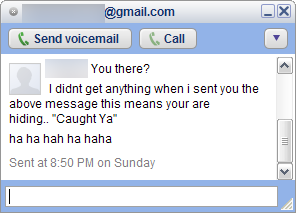
  • Open The Chat window of the user, you want to check the status.
  • Click on option and click on “Go Off the Record”
go off the record
  • Now message user
  • If you get something in red that the user is offline and can’t receive messages that means the user is offline
offline
  • If you didn’t get any message in red that means user is online in invisible mode..:)
google talk invisible
Invisible on Google talk
Now Enjoy the tip and catch your friends who pretend to be offline.


If you trawl through the AdSense message boards you can’t help but come across tales of woe from Adsense Publishers that have had their account banned by Google.
Below is a list of ways people have been banned from AdSense and information on how to avoid it happening to you.
Don’t click on your own ads
The obvious one but still people do it. Google has the IP address of the computer/s that you’ve used to create and check your AdSense account. If it sees that this IP address clicks one of your ads you’re in trouble.
Don’t do it. It’s theft. Not from Google but from the AdWords advertisers.

If you want to go to a site advertised by one of your ads don’t click on it look at the URL of the advertising site at the bottom of the ad and type it into your browser.
If you click on one accidentally (which does happen) you’re probably be ok but it’s worth dropping a quick email to Google with an explanation and apology
Don’t log in to AdSense from a shared computer.
As I said above Google keeps a record of every machine IP address used to look at youraccount. If you check your stats on a machine then someone else clicks on your ads from the same machine Google sees this as click fraud. Worth bearing in mind when thinking of checking your stats from somewhere like an Internet Café.
Don’t log in to your AdSense account from work.
Apart from getting in trouble with the company that employs you there’s also a further real risk. Most companies use a proxy server to access the Internet. A proxy server with ONE IP ADDRESS. Therefore you checking your ads from work means this proxy IP address being recorded by Google as one that you use. Problem is if there are 1000 people in your company it is the same IP address for them too. Google can’t differentiate between you and the other 999 employees in your company. If one of these 999 clicks on one of your ads it’s ban time.
Don’t get into a ‘I’ll click your ads if you click mine’ agreement with another Webmaster.
As above Google will have your IP address and that of every AdSense publisher. If they see these IP addresses consistently clicking on each other ads it’s goodbye for both of you.
Don’t tell friends and family
Telling friends and family about your money making websites can lead to problems. Even if you tell them not to click on your ads there’s always the chance that Auntie Maud will think it’s a good idea to make some extra money for her favourite nephew. 100 clicks later from the same visitor and your account is screaming ‘Click Fraud’.
Receiving clicks from illegal traffic
Check the AdSense TOS for sources of traffic that aren’t allowed by Google. These include methods like Traffic exchange, PTC advertising, Auto surf etc.
Do monitor your visitor and AdSense figures
Check your account at least once a day. If you see a massive spike coupled with a massive increase in Page CTR investigate using your visitor stats website. If you see it’s all come from the same IP address you could have been the victim of a malicious attack – inform Google via email and offer them access to your logs.

Submit blogger sitemap to yahoo to index your web pages

Posted by Rahil Wednesday, September 1, 2010 0 comments

This post explains how to submit your blogger sitemap to Yahoo.By submitting your sitemap to yahoo, they will index your web pages in yahoo search engine and provide you with detailed information related to your blog like which pages are linking to yours,popular pages in your site and you can submit and track feeds for your sites.
Also,you have the choice to delete any urls of your blog if you won't want to index certain pages of your site.
Submitting your site to yahoo is easy and give your web pages more exposure.
All you need is a YAHOO ACCOUNT(ID).However,you don't need an yahoo ID to know the information like how many pages are indexed,etc.But,if your blog is a new one or no pages in your blog are indexed(type your blog url in yahoo search and see to check whether your web pages are indexed or not), then you want Yahoo id to submit your sites,feeds,etc.
Let't see how to make yahoo index your webpages by submitting your blog sitemap.
1.Go to Yahoo Site Explorer


2.Click on the 'Sign in' link which is at the top of the page,see the screenshot below(If you don't have a Yahoo id, you can get one here) and sign into your accoutnt.
click on the 'sign in link'
3.Type your blog url in the box provided as shown in the below screenshot.Don't forget to replace the 'yourblogurl' with the original url of your blog and click on the 'Add My Site'
4.After adding your site,you need to Authenticate(Verify your ownership).
There are two ways to verify your ownership.One is to upload a file to the root directory of your site which can't be possible in blogger.
Another one is to 'adding a metatag' which is possible and the only way to verify ownership for bloggers.First,copy the metatag..
Next,sign in to your blogger account>Edit html and paste the metatag below the head tag and SAVE THE CHANGES,look at the screenshot below.
Next,you will get a message saying that 'Your site is pending authentication'
Note:Don't remove the metatag,they will revalidate your ownership by checking your ownership regularly.
5.Next,go back to the 'Site explorer home', and check the box next to your blog url and click on the Manage button.

6.Type rss.xml or atom.xml in the box provided.It helps yahoo to discover more of your site content via your rss or atom feeds and to index your blog pages quickly whenever your blog is updated.Next,click on the add feed button.


That's it.Now,you have sucessfully submitted your blog sitemap to yahoo.Check your account after a couple of days and you will see your blog indexed in yahoo search engine.


search-ads
Here Is An Another Interesting And Informative Video From Google Team, In This Video Google's Product Manager Nundu Janakiram Will Show How These Search Ads Works. 

Enjoy The Video:


Now You Can Create RSS feed for any webpages,blog with google

Watch The Video Which Will Show You, How It Works.


Online Marketing
TopOfBlogs Technology blogs Internet Blogs
Computers (Hardware) - TOP.ORG Blogarama - Blog Directory tricks and tips One way text links
Submit Your Site To The Web's Top 50 Search Engines for Free!
Visit this site.

Enter email here

Join This Blog